TV Remote - Universal Control
EVOLLY.APPTools
4.23.14K Reviews
- Version
- 1.5.7
- Installs
- 10.00M
- Age Rating
- Everyone
Screenshots
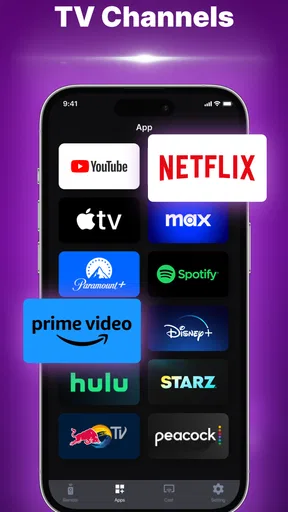
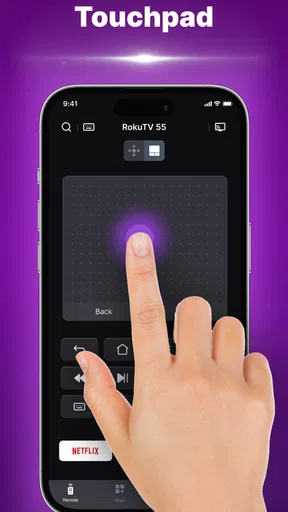
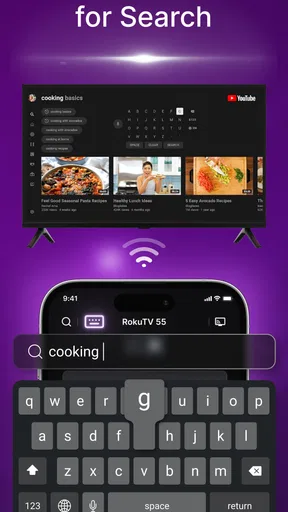
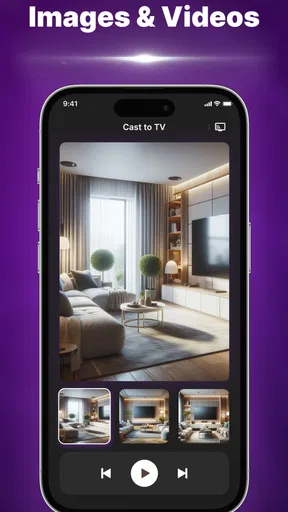
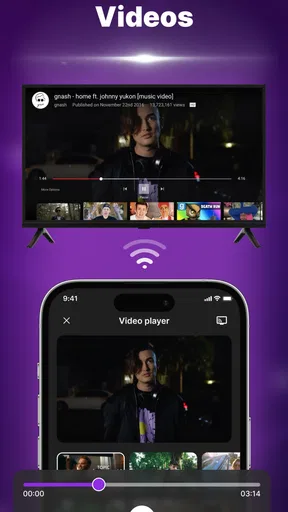
Our Review of TV Remote - Universal Control
 Analysis by Appyee
When I reach for the remote and find only sofa cushions, using a phone to control the TV sounds like a small convenience with a surprisingly practical payoff. TV Remote - Universal Control turns that phone into a remote for compatible televisions and streaming devices, so it can replace some of the everyday button pressing that would otherwise mean hunting for a second device. The key question is not whether a phone can look like a remote, but whether this approach fits the way you actually watch TV.
A phone becomes a shared control point
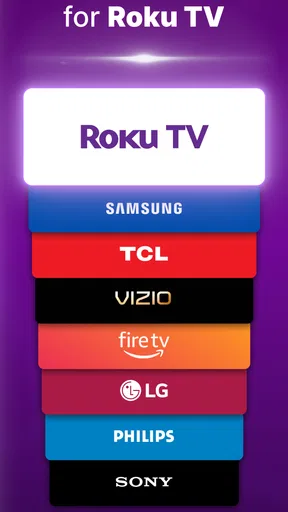
The useful idea here is having one device you’re already likely to keep nearby take over basic TV control. EVOLLY.APP makes this a tools app rather than a streaming service: it is meant to help you operate a screen, not provide shows or replace the apps you use to watch them. Its stated brand coverage spans Samsung, LG, Roku, Fire TV, Vizio, TCL, Sony and others, which makes the broad compatibility angle its main appeal.
That breadth is convenient, but I would treat it as a starting point rather than a promise that every feature works identically on every television. A remote app depends on the particular TV or streaming device and how it connects. If you are choosing this for a household with more than one screen, try pairing the device you use most first. That gives you a useful sense of whether the connection and controls suit your setup before you make the phone your default.
In everyday use, the biggest benefit is having the controls close at hand when the physical remote has wandered off. You can keep watching without pausing the evening to search under blankets or check another room. It is a modest fix, but those small interruptions are exactly where a phone-based remote can earn its place.
Setup and the connection that matters
Getting started with the TV Remote - Universal Control app is as easy as pie. Seriously, if you can handle installing an app, you can handle this. Once downloaded, the app walks you through a simple setup process. It supports a wide range of TV brands, which is perfect if you’re like me and have different TVs scattered around the house.
After setting it up, all you need is to connect your phone to the same Wi-Fi network as your TV, and boom, you’re in business. I was pleasantly surprised by how quickly it synced up with my devices. No hiccups, no confusing tech jargon. Just straightforward and smooth sailing.
The same-network detail is worth checking before troubleshooting anything more complicated. If the TV does not appear, first make sure the phone and television are on the network you expect them to use. In homes with separate guest and main networks, devices may be connected to Wi-Fi while still being unable to see one another. That is a network arrangement issue to check, not a reason to assume the TV is unsupported.
For a smoother first setup, I’d keep the physical remote nearby until the phone has connected and you have tested the controls you use most. That avoids getting stuck if you need to navigate a TV prompt or correct a setting. Once it is working, you can decide whether the phone is a handy backup, a regular controller, or both.
Controls that are easy to find
The interface is sleek and intuitive. It doesn’t try to overwhelm you with a bunch of unnecessary features. Instead, it focuses on what matters: controlling your TV. I particularly loved the large, easy-to-read buttons. They’re perfect for those of us who don’t want to squint at our screens.
Navigation is a breeze, too. Whether you’re changing the channel, adjusting the volume, or switching inputs, everything is right where you’d expect it to be. Plus, the app allows for customization. You can set up your favorite channels for quick access, which is a nice touch.
Favorites are most valuable when they remove a repeated chore, not when they simply decorate the interface. If you regularly switch between a few channels, setting those up for quick access can cut down on repeated navigation. I’d keep the list focused on what you genuinely use; a short, practical set is easier to scan than a long collection you rarely need.
The phone’s screen also changes the feel of control. A physical remote lets you find buttons by touch, while a phone asks you to look down and tap. That trade-off is easy to overlook in a quick demo but matters when you are watching in a dark room or trying to adjust volume without drawing attention away from the screen. The larger buttons help readability, but they do not make a touchscreen identical to a tactile remote.
Where broad compatibility helps—and where it needs a check
Now, let’s talk compatibility. This app works with a plethora of devices. From smart TVs to streaming devices, it’s got you covered. I tested it on a few different brands, and it performed flawlessly across the board. The connection was stable, and the response time was impressively fast.
One feature I found particularly useful was the voice control. Just a simple command and the app responds. It’s like having a personal assistant for your TV! And for those moments when you can’t find your phone (yes, it happens), you can still control the TV using the app’s widget feature on your home screen.
For a household with several screens, it helps to think of each TV as its own setup rather than expecting one universal layout to cover every room in exactly the same way. A living-room television might be used mostly for streaming, while a bedroom screen may be used for ordinary channel changes and volume adjustments. Switching between devices is useful when those needs differ, but it is still worth confirming the selected device before tapping a control; otherwise, you may be adjusting the wrong screen.
Voice control can be useful when your hands are busy, but I would not make it the only reason to install the app. Spoken commands are less appealing in a quiet room, around sleeping family members, or when you would rather not talk to your phone. In those situations, the on-screen controls are the more discreet option. The widget can also reduce the number of steps to reach the remote, though a phone that is out of reach is no help until you find it.
How it fits into an ordinary evening
Imagine settling in to watch something and realizing the television is on the wrong input, while the remote is nowhere nearby. Instead of getting up to search, you open the app, select the screen you want, and use the controls to switch inputs. Later, if you settle on a few channels you visit often, favorites can make those repeat choices quicker. That is the strongest everyday case for this kind of tool: it shortens several small interruptions without changing what you watch or where you watch it.
It is also a useful backup for guests or family members who do not know where a particular remote is kept. A phone-based controller can make basic adjustments easier to explain than a pile of similar-looking remotes. Still, I would not assume every visitor will want to install an app or connect a phone just to operate the TV. For a shared space, keeping the physical remote available remains the simplest option for people who prefer familiar buttons.
Compared with the usual alternatives, this app sits between a dedicated remote and each television’s own control software. A physical remote is ready without unlocking a phone and usually wins for quick, eyes-free button presses. A manufacturer’s own app may be a better fit if you only need to control one brand and want a brand-specific experience. A universal phone remote is more appealing when you want a single place to reach different supported screens, especially if the remotes are frequently misplaced.
Screen mirroring is another extra mentioned by the app, and it can suit a different sort of evening: showing phone photos on a larger display or putting a video from the phone on the TV. I’d think of it as a separate convenience from remote control rather than the reason everyone should install the app. If your main goal is simply changing channels or adjusting volume, the controls are the central value; if sharing phone content is already part of your routine, mirroring may make the app more useful.
Useful extras, with realistic expectations
Beyond the basics, TV Remote - Universal Control offers some cool extras. For instance, the app supports screen mirroring. Want to show off your latest vacation photos on the big screen? Done. Need to stream a video from your phone? Easy peasy.
It also handles multiple devices seamlessly. So, if you’ve got a TV in every room, you can switch between them without breaking a sweat. The app remembers your settings for each device, which is a lifesaver for someone as forgetful as me.
There is a practical distinction between using the phone as a remote and using it as a screen-sharing tool. For control, you want a reliable connection and buttons that are easy to reach. For mirroring, you care more about which phone content appears on the larger screen and whether that is convenient for the people watching. I’d choose the function that solves a real problem for you instead of treating a longer feature list as proof that the app must be a better fit.
Multiple-device support makes the most sense when the household has a genuine reason to switch between screens. If you only use one TV, you may rarely benefit from that flexibility. If you do switch rooms, take a moment to verify the active device before changing volume or input; choosing the wrong screen is an easy mistake whenever several controls live in one app. That small habit keeps a helpful shortcut from becoming a source of confusion.
There are also ordinary phone-related trade-offs. You need the phone to be available, charged, and connected, and you may prefer not to unlock it each time someone wants to pause or adjust the sound. A dedicated remote avoids those dependencies. On the other hand, the phone can be a sensible backup when the remote is missing, and it reduces the need to keep several controllers within reach.
Who should try it, and who may prefer a remote
I think this is best suited to people who regularly misplace a TV remote, use more than one compatible screen, or want a convenient backup on a device that is already close by. It can also be useful for someone who finds a simple on-screen layout easier to read than the small labels on a physical controller. The app is free to install, though it includes in-app purchases, so I’d check the available choices in the app before deciding whether any paid option is worthwhile.
If you mainly want a tactile controller that works without looking at a screen, stick with the supplied physical remote or consider a dedicated replacement. The same goes for someone who dislikes phone-based controls, does not want to keep a device on the same Wi-Fi network as the television, or only needs a narrowly focused control option for one particular screen. In those cases, a TV’s own remote or a manufacturer-specific alternative may be simpler.
For a first try, I’d install it when you have a few unhurried minutes, connect the phone and TV to the same Wi-Fi network, and test the basic actions you actually use: power, volume, input switching, and navigation. Then decide whether favorites, voice control, the home-screen widget, or mirroring add enough value to your routine. That small test is more useful than judging the app by its broad compatibility pitch alone.
The app is a free tools option from EVOLLY.APP, rated for Everyone, and its current version is 1.5.7. It has a 4.2 average from around 93,000 ratings and more than 10 million installs, which suggests plenty of people have tried it, though popularity does not guarantee it will suit every TV setup. It was released on March 8, 2021, supports Android 6.0 and up, and offers in-app purchases priced from $4.49 to $32.99 per item. I’d focus on whether your own devices connect and whether the controls feel comfortable before weighing those broader figures.
A handy backup, not a universal replacement
To sum it up, if you’re tired of juggling multiple remotes or constantly misplacing them, the TV Remote - Universal Control app is a must-have. It’s user-friendly, reliable, and packed with useful features. Plus, it’s a great conversation starter when you have friends over. "Oh, you’re still using the old school remote? Let me show you how it’s done!"
So, do yourself a favor and give it a try. You might just find that your phone becomes your favorite remote control. Who knew solving a simple problem could be so satisfying?
Verdict
Strengths of TV Remote - Universal Control
- Supports multiple device brands effortlessly.
- Simple and intuitive user interface.
- Quick setup with no technical skills needed.
- Customizable remote layouts for personal needs.
- Seamless connectivity with Wi-Fi and IR blasters.
Limitations of TV Remote - Universal Control
- Limited features in the free version.
- Occasional connectivity issues reported.
- Ad-supported, which can be intrusive.
- Some devices may not be compatible.
- Requires in-app purchases for full access.
Other Releases by EVOLLY.APP
View All
TV Cast for Chromecast
Tools3.7

Remote Control for RokuTV
Tools4.2
Similar Picks in This Category
View All
Google LLC4.0

Gboard - the Google Keyboard
Google LLC4.5

Google Play services
Google LLC4.3

Google Play Store
Google LLC4.9

Files by Google
Google LLC4.5

SHAREit: Transfer, Share Files
Smart Media4U Technology Pte.Ltd.4.3
Frequently Asked Questions
Is TV Remote - Universal Control compatible with all smart TVs?
TV Remote - Universal Control is designed to work with a wide range of smart TVs, including popular brands like Samsung, LG, Sony, and more. However, compatibility may vary based on the model and the year of manufacture. It's recommended to check the app's compatibility list or contact customer support for your specific model.
Does TV Remote - Universal Control require an internet connection to function?
While some features of TV Remote - Universal Control may require an internet connection, such as voice command and streaming services integration, the basic remote functions generally do not. The app primarily uses infrared (IR) or Wi-Fi to communicate with your TV, depending on your device's capabilities.
Are there any in-app purchases in TV Remote - Universal Control?
Yes, TV Remote - Universal Control offers in-app purchases. These typically include premium features such as ad-free usage, additional remote layouts, and advanced customization options. Users can choose to upgrade for a fee to enhance their experience, but the core functionality remains available for free.
Can TV Remote - Universal Control be used on multiple devices simultaneously?
The application can be installed and used on multiple devices. However, simultaneous control from different devices may lead to command conflicts. For seamless operation, it is advisable to use one device at a time or ensure all users are coordinated when using multiple devices.
How user-friendly is TV Remote - Universal Control for beginners?
TV Remote - Universal Control is designed with user-friendliness in mind, featuring an intuitive interface that mimics a traditional remote. The setup process is straightforward, with guided instructions to pair your TV. Additionally, helpful tooltips and a comprehensive help section are available to assist new users.
